To log in to Ethos, go to https://lms.ethosschool.org and click the "forgotten your username or password?"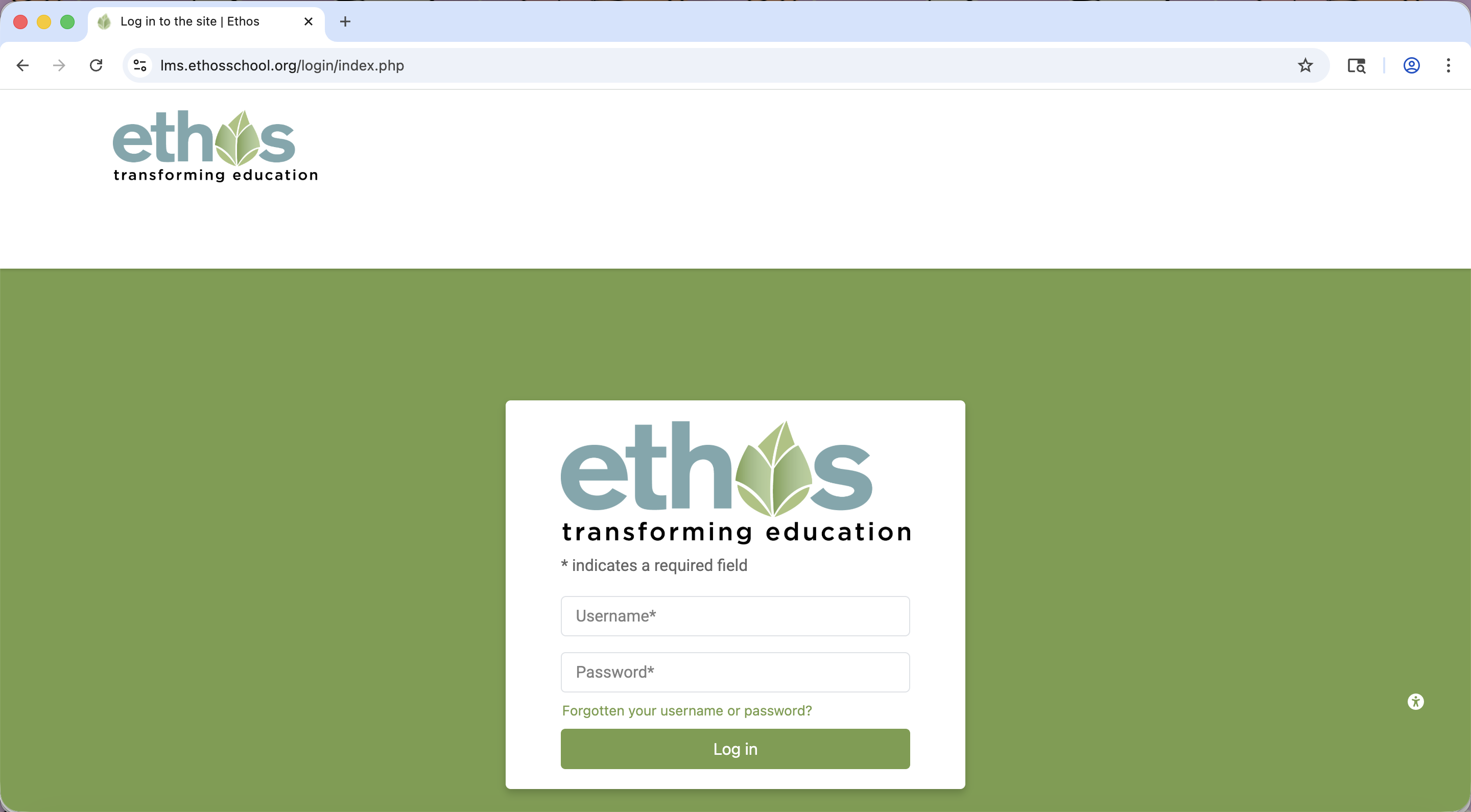
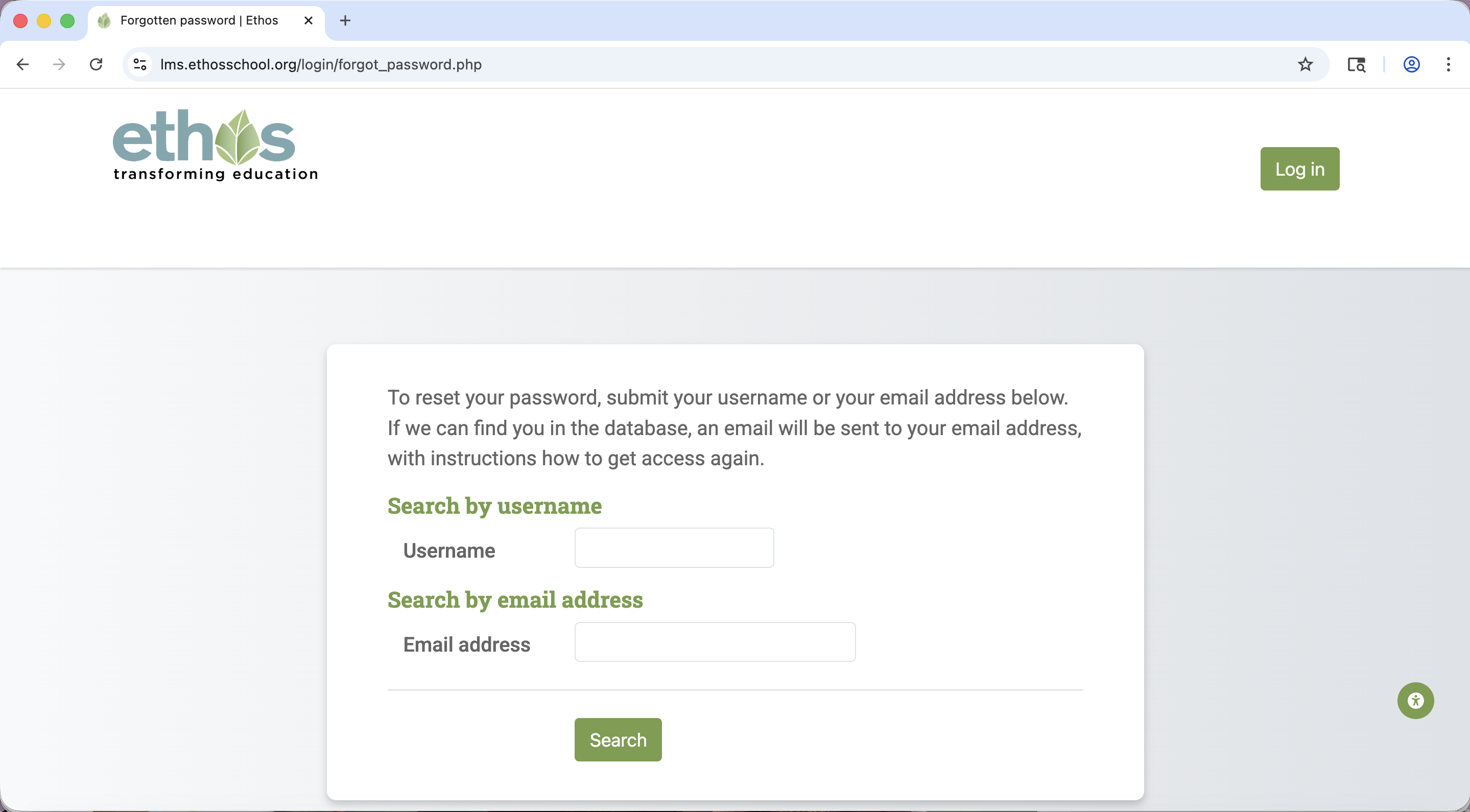
Type in your username OR email adresss (not both!) and click the search button. This will send you an email that will contain the link the reset your password.
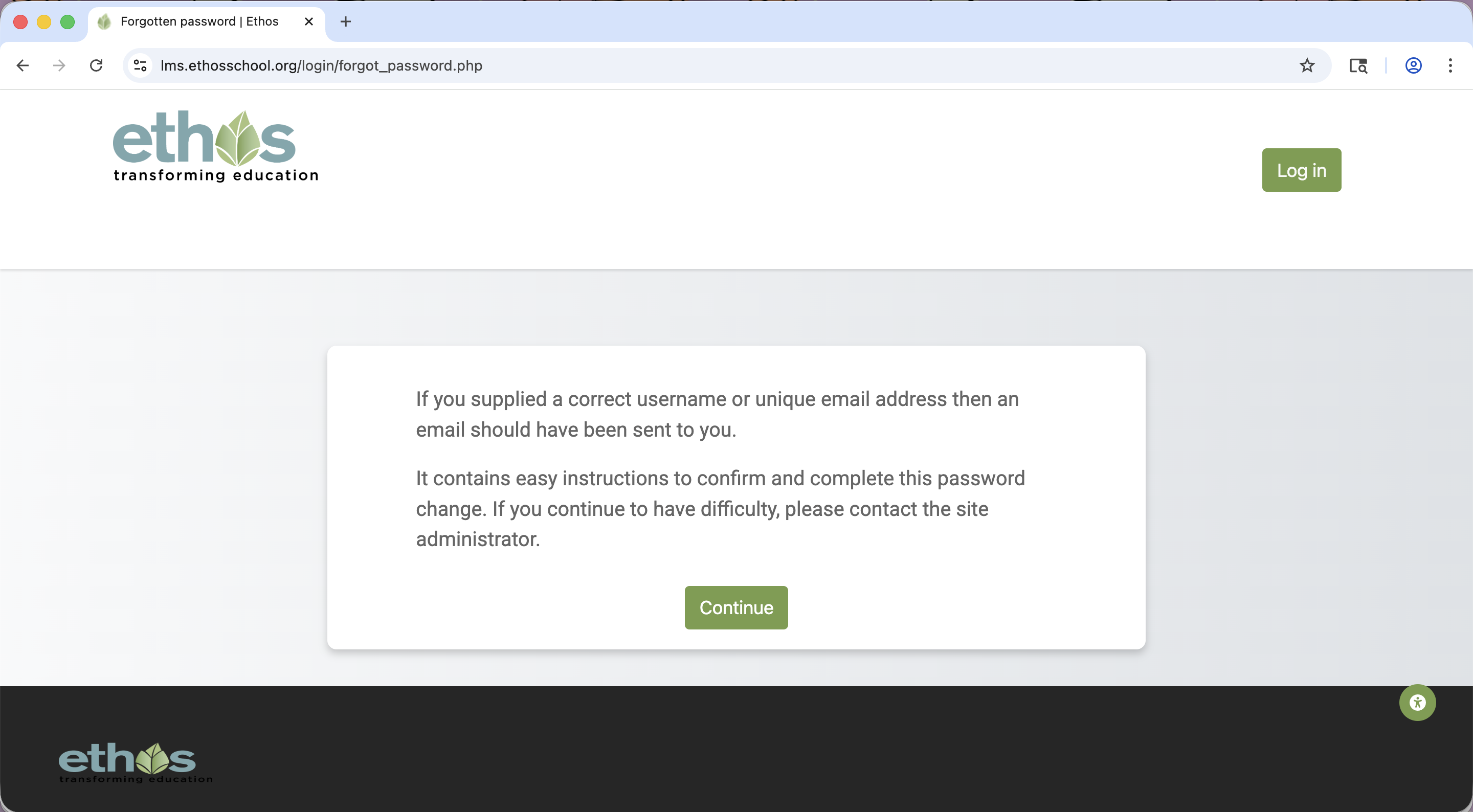
Once you click search, it will bring you to this page. Now, check your email for a password reset request.
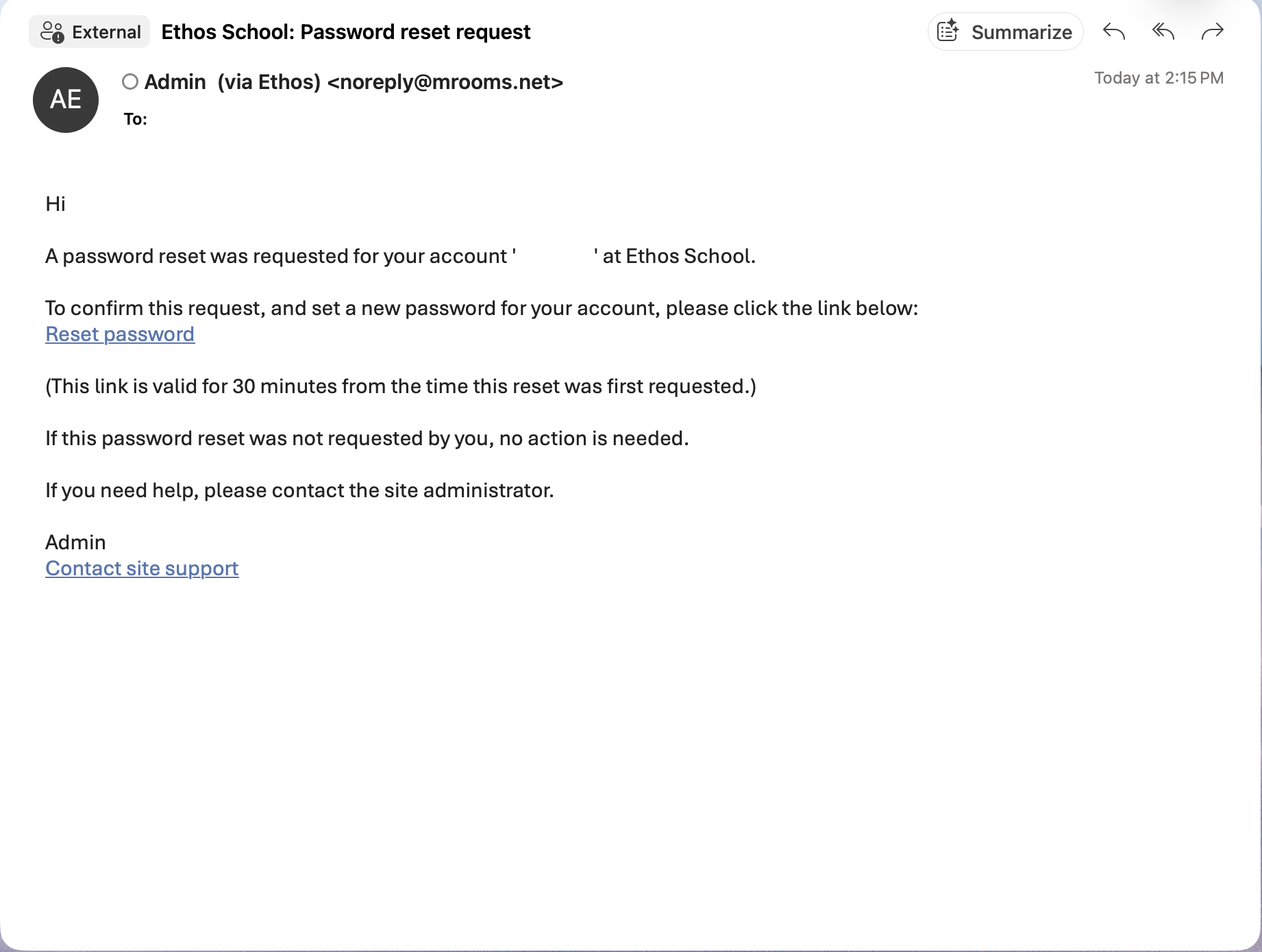
This is what the email should look like. If you aren't seeing it, check your spam folder. Click the blue "Reset password" link to be redirected back to LMS to reset your password. If your email says something about not being able to reset your password on this site, please contact support@ethosschool.org.
When resetting your password, make sure it is a password you have never used before. Like it says in the screenshot below, the password must have at least 9 characters, at least 1 digit(s), at least 1 lower case letter(s), at least 1 upper case letter(s), and at least 1 special character(s) such as (!@#$%^&*). When you have typed in your new password, click "save changes".
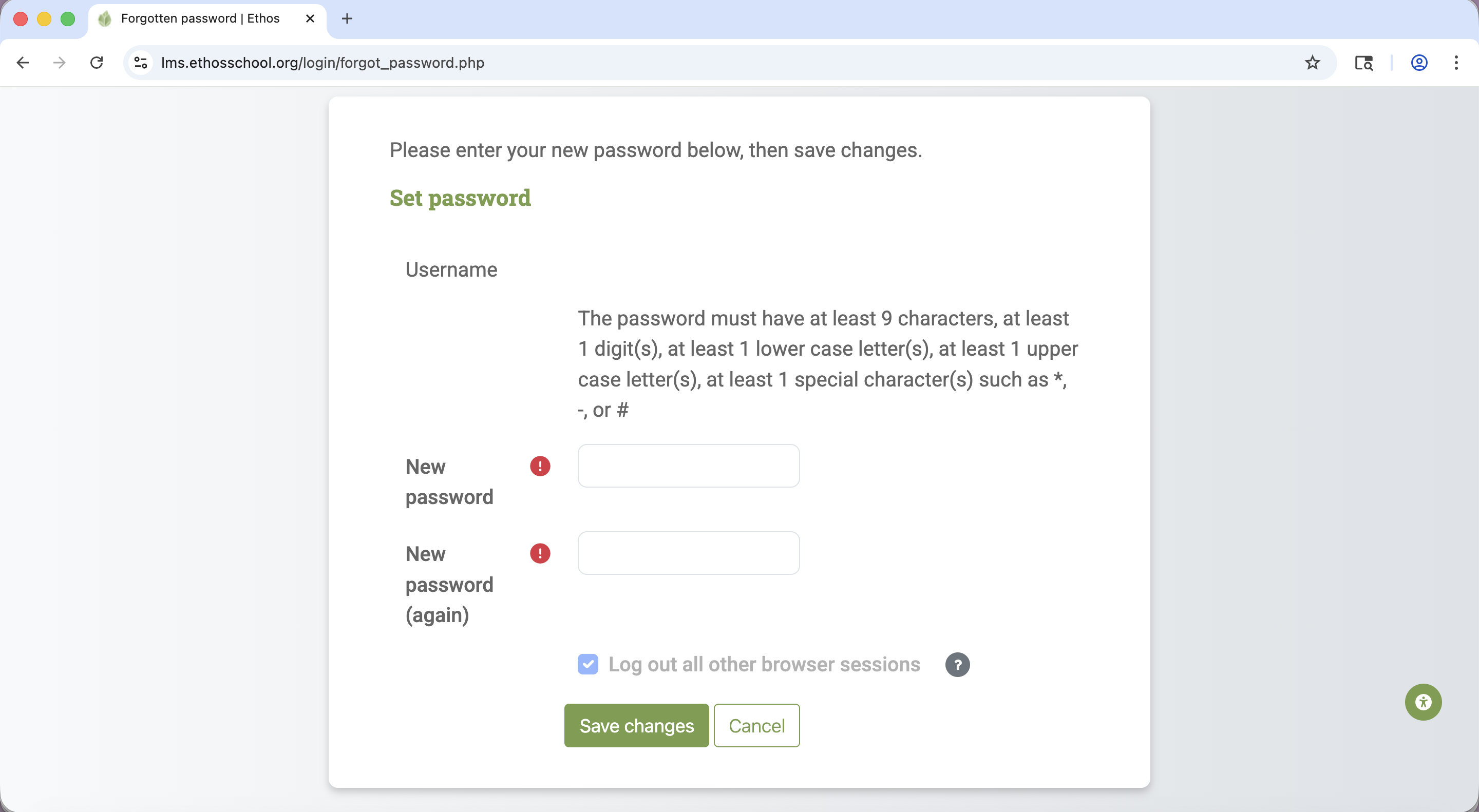
If you are successful in reseting your password, it will log you into your account automatically.
Was this article helpful?
That’s Great!
Thank you for your feedback
Sorry! We couldn't be helpful
Thank you for your feedback
Feedback sent
We appreciate your effort and will try to fix the article